Sending Feedback & Getting Support
Everyone deserves a seamless workflow free from frustrating roadblocks. When an unexpected behaviour halts your progress or a missing tool slows you down, your work stalls. We are here to clear those obstacles and build software that fits how you work. By sharing a quick message directly in your Permiehub project, you can capture exact screenshots of what you see, outline the problem, and get notified once it is fixed. Taking a moment to share your experience transforms friction into a smoother, more effective space designed for your success.
Why Send Feedback
When you encounter a roadblock or realise a tool is missing, you want to report it instantly without interrupting your momentum so you can get back to business. Sending feedback gives us the exact visual context from your screen to fix issues quickly, build the capabilities you actually need, and notify you as soon as they are ready.
Accessing the Feedback Form
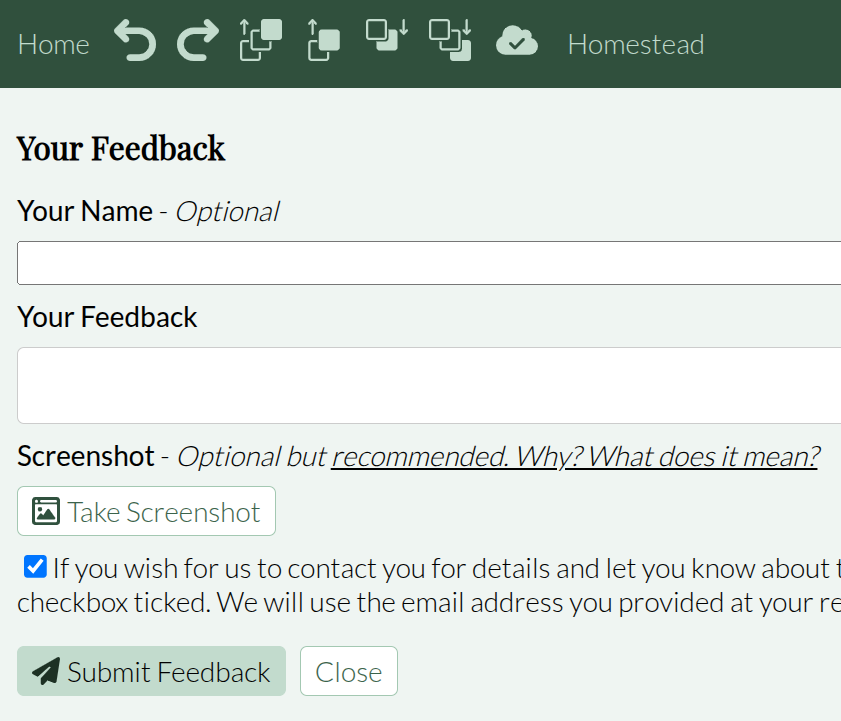
Click the feedback icon located in the top navigation bar next to your user profile icon to open the Your Feedback window.
Entering Your Information
- Enter your name in the Your Name - Optional field if you want to identify yourself.
- Describe your request or issue inside the Your Feedback text field.
Managing Screenshots
- Click the Take Screenshot button to capture your current view. Adding a screenshot provides great insight into what you see on screen that you wish to resolve.
- Use the editing tools to redact sensitive details on the captured screen if necessary.
- Remove the captured image if you prefer not to attach visual details.
Enabling Follow-Up and Submitting
- Tick the checkbox next to If you wish for us to contact you for details if you want update notifications when your item has been resolved or added. The email address provided at your registration will be used.
- Click Submit Feedback to send your input, or select Close to exit without submitting.
Important
Want to ensure you do not miss out when your feature request gets built or your issue gets resolved? Leaving the contact box ticked ensures we can reach out. If left unticked, we might not update you directly regarding this specific feedback submission.