Printing Your Project
Learn how to export your designs as high quality PDF files, configure customisable legends, and ensure your printed plans maintain accurate scale. Follow detailed instructions for selecting page sizes, adjusting layer visibility, and outputting implementation-ready documentation.
Why Print Your Design?
While Permiehub is a powerful digital tool, there are many stages of the design journey where a physical copy is highly beneficial:
- Field Observation: Use a printed Base Map on-site to hand-sketch observations, water flows, and mud maps directly onto your plan.
- Collaborative Planning: Large printouts facilitate discussions with family or clients, making it easier to gather feedback and share ideas.
- Long-term Motivation: Displaying your Concept or Detailed Design keeps you aligned with your vision and motivated throughout the implementation process.
- Professional Handover: Providing scaled PDFs and printed Legends transforms your digital work into a high-quality physical deliverable, ensuring clients and contractors have a clear reference for the project.
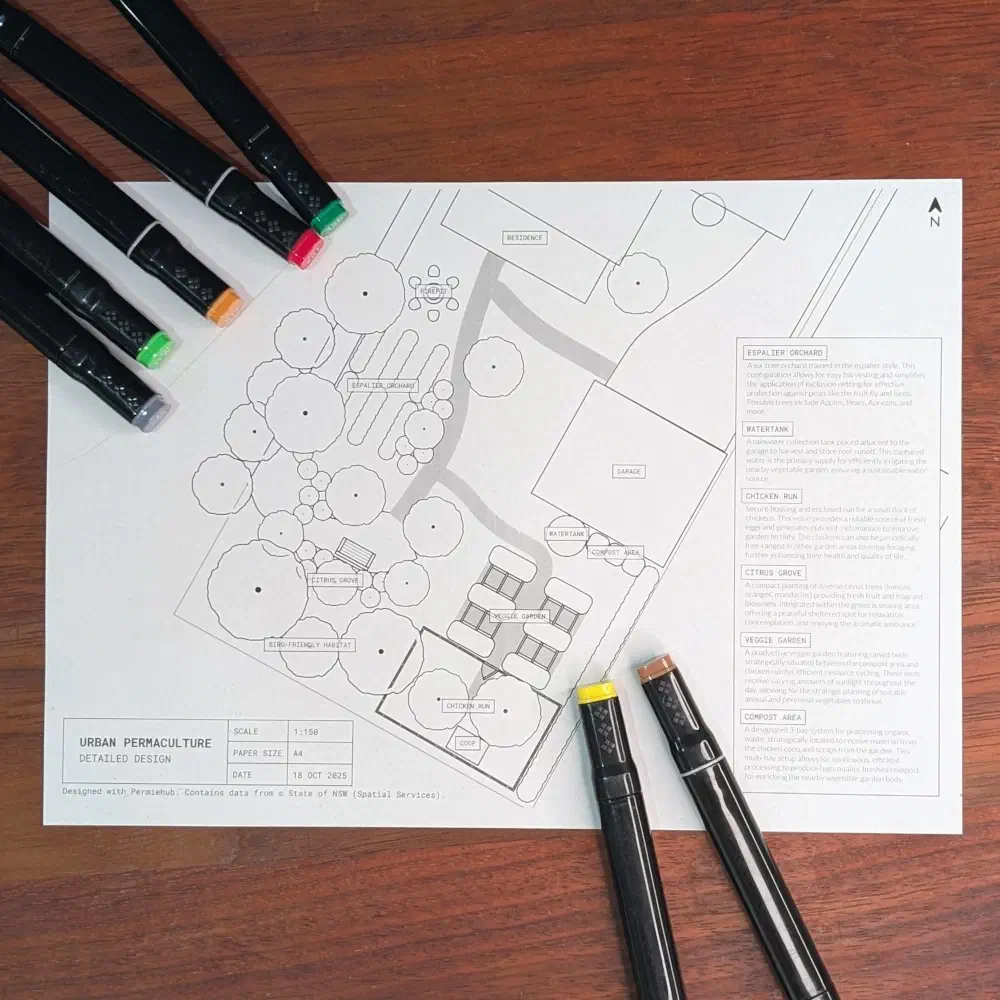
You can export your project to a PDF and print it.
Exporting Your Design into PDF File
- Go to your project.
- Go to the overlay you want to print, such as Base Map, Site Analysis, Concept Design, or Detailed Design.
- Select the Download to Print tool from the tools menu or press the P key.
Selecting Area to Print
- Adjust the selection area by moving it around the canvas. The image below illustrates the selection area.
TIP
When using the selection area for the first time, Permiehub attempts to select the most appropriate paper size, scale, and orientation for your design. You can change these in the detailed settings of the selection area. For larger properties, you might prefer to focus on a smaller area first by adjusting the scale and paper size.
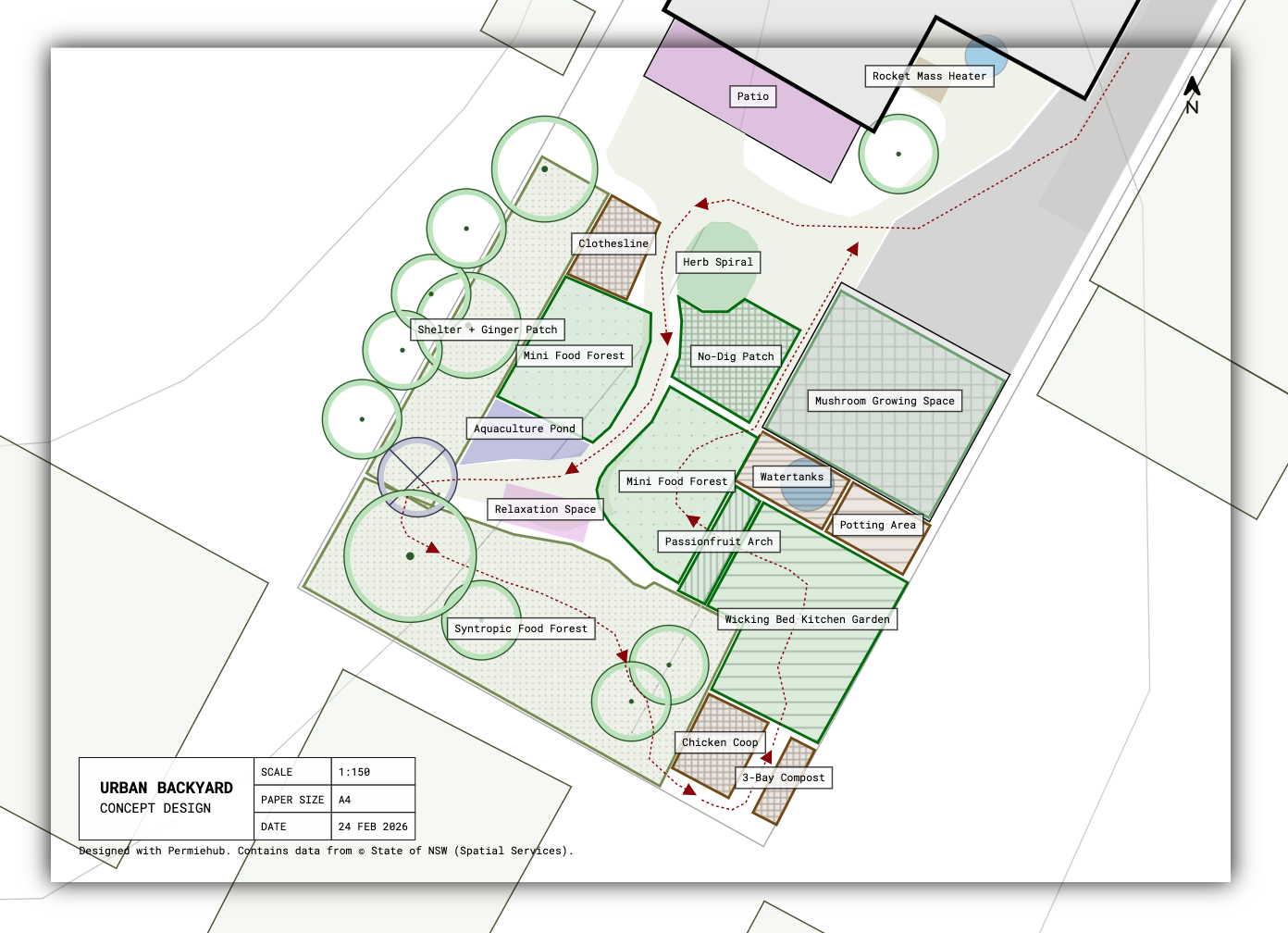
Permiehub Printing Selection Area Example
Changing Page Parameters
- Adjust the page orientation, paper size, and scale in the sidebar.
Important
Ensure you select a paper size that matches the physical paper you intend to use in real life.
Downloading the PDF
- Press the Download as PDF to Print button in the sidebar.
TIP
You can toggle the visibility of other overlays using the eye icon next to the given overlay.
Adding Legend to Your Design
You can add a Legend to the side of your drawing, which Permiehub will generate automatically. To include an item, simply fill in the Label (or Name) and the Description fields for that object.

Permiehub Printing Legend Example
The image above was created by populating the Label and Description fields for the various zones within the design. To achieve the same style of the legend as pictured above, activate the Download to Print tool and configure the page with the following settings:
- Legend: Visible,
- Label Style: Text in Rectangle,
- Items Must Have: Label and Description,
- Marker: Label (if available),
- Heading: None,
- and Paragraph: Description (if available).
All objects within the selection area that meet the criteria defined by Items Must Have will be included in the Legend automatically.
You can also optionally adjust the Legend Width to suit your layout.
TIP
You can adjust the size of the Labels using A- and A+ buttons in the top-right corner of the canvas or hide them using the crossed A button.
Using Legend to Create Plant Lists
The Description field allows you to record notes and additional information in a formatted way, which can be used in several ways. You can use it to create a simple plant list or to describe specific plant guilds within your design.
TIP
If you’re approaching the object limit in your plan, you can use the description field of the main plants in a guild or planting area to include supplementary information, potentially reducing the need for additional annotation objects.
If you would like to print the Legend on a separate sheet of paper, please see the section below.
Exporting Design Legend
As an alternative to including the Legend on your main printed design, you can generate a separate PDF document with the Legend to accompany your plan. With the Download to Print tool active, click Download Legend in the sidebar to export the legend as a standalone file.
Printing Your Design
- Open the PDF file.
- Use the print function in the program you used to open the PDF file.
- Make sure the selected Paper Size and Orientation (landscape/portrait) match the one you selected in Permiehub.
- Make sure the Scale is set to 100%.
- Click on the Print button.
Important
When printing the exported PDF, always set the Scale to 100%.
Do not enable features such as “Scale to Fit” or “Fill Entire Paper” as it may shrink the image and result in the scale not being accurate.