Navigation & Controls
Learn the basics about moving around the canvas, interacting with objects, and more.
Modes
Permiehub offers two control modes for interacting with the project canvas. The standard is Simple Mode, which utilises navigation familiar to users of platforms like Google Maps or Apple Maps.
Alternatively, we provide an Advanced Mode tailored for power users accustomed to professional graphical editors such as Inkscape or Adobe Illustrator.
Simple Mode (Recommended)
Move Around the Canvas
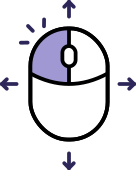
Press and hold the left mouse button to pan across the canvas. This also applies to touchpads and touchscreens: simply press and drag with one finger to move.
Zoom In & Out
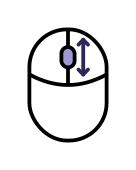
Use the mouse scroll wheel to zoom in or out. On a touchpad, slide two fingers up or down.
If you are using a touchscreen, use a two-finger pinch or unpinch gesture to adjust the zoom level.
Additionally, you can double-click and drag with a mouse, or use the equivalent double-tap and slide gesture on touch devices.
Select an Item
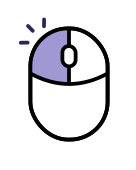
Click the left mouse button to select an item. On a touchscreen, simply tap the item.
WARNING
Reference Grids, and Reference Images, such as aerial imagery, can only be selected when the References overlay is active or unlocked.
Select Multiple Items
Press and hold the Shift key on your keyboard and click with the left mouse button to toggle adding or removing items from your selection.
Alternatively, when using the Advanced Mode of the Select and Transform tool, click on the canvas and drag over an area to select multiple items.
Move Items
Press and hold the left mouse button to move one or more selected items around the canvas.
Delete Item or Items
Once you have selected items, press Delete key on your keyboard or click the Bin icon displayed on the canvas when items are selected.
WARNING
Be careful - once you delete an object, it might be gone.
If you accidentally delete something in your project, we recommend immediately using the undo action button on the top left. The app can remember a few changes during your work, but once you refresh or close your project, it forgets it.
If you struggle with missing large amounts of data, that would significantly hinder your progress - depending on the case, we might be able to recover the data from the backup.
For selection, refer to Select an Item.
Advanced Mode
Move Around the Canvas
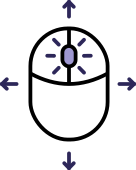
Press and hold Space and then press and hold the left mouse button to pan across the canvas.
You can also press and hold the mouse scroll button to pan the canvas.
When using your touchpad, use two fingers to move around the canvas.
Zoom In & Out
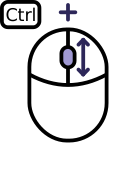
Press and hold the Ctrl key on your keyboard and move the mouse scroll button up or down.
When using your touchpad, hold the Ctrl button and move two fingers up or down to zoom in and out.
Select an Item
Press and hold the left mouse button to move one or more selected items around the canvas.
When using your touchpad, select and move items with a single finger.
Select Multiple Items
1. Shift + Left-Click
Press and hold the Shift key on your keyboard and click with the left mouse button to toggle adding or removing items from your selection.
2. Rectangular Selection
Click on the canvas and drag over an area to select multiple items.
Move Items
Press and hold the left mouse button to move one or more selected items around the canvas.
Delete Item or Items
Once you have selected items, press Delete key on your keyboard.
WARNING
Be careful - once you delete an object, it might be gone.
If you accidentally delete something in your project, we recommend immediately using the undo action button on the top left. The app can remember a few changes during your work, but once you refresh or close your project, it forgets it.
If you struggle with missing large amounts of data, that would significantly hinder your progress - depending on the case, we might be able to recover the data from the backup.
For selection, refer to Select an Item.