Attributes
We cover important properties of objects in Permiehub such as labels and properties of plants.
What are Attributes
Objects in your digital design inside of Permiehub carry information about themselves. These properties that we can record about them are called Attributes. For most types of objects, you can set various attributes for each one.
Label
You can add a Label to any object in your design. Unlike an object’s description or name, its Label will show on the canvas.
EXAMPLE
An example of a label can be an abbreviation of a plant, an ID number of your tree, or a short description you want to show when printing.
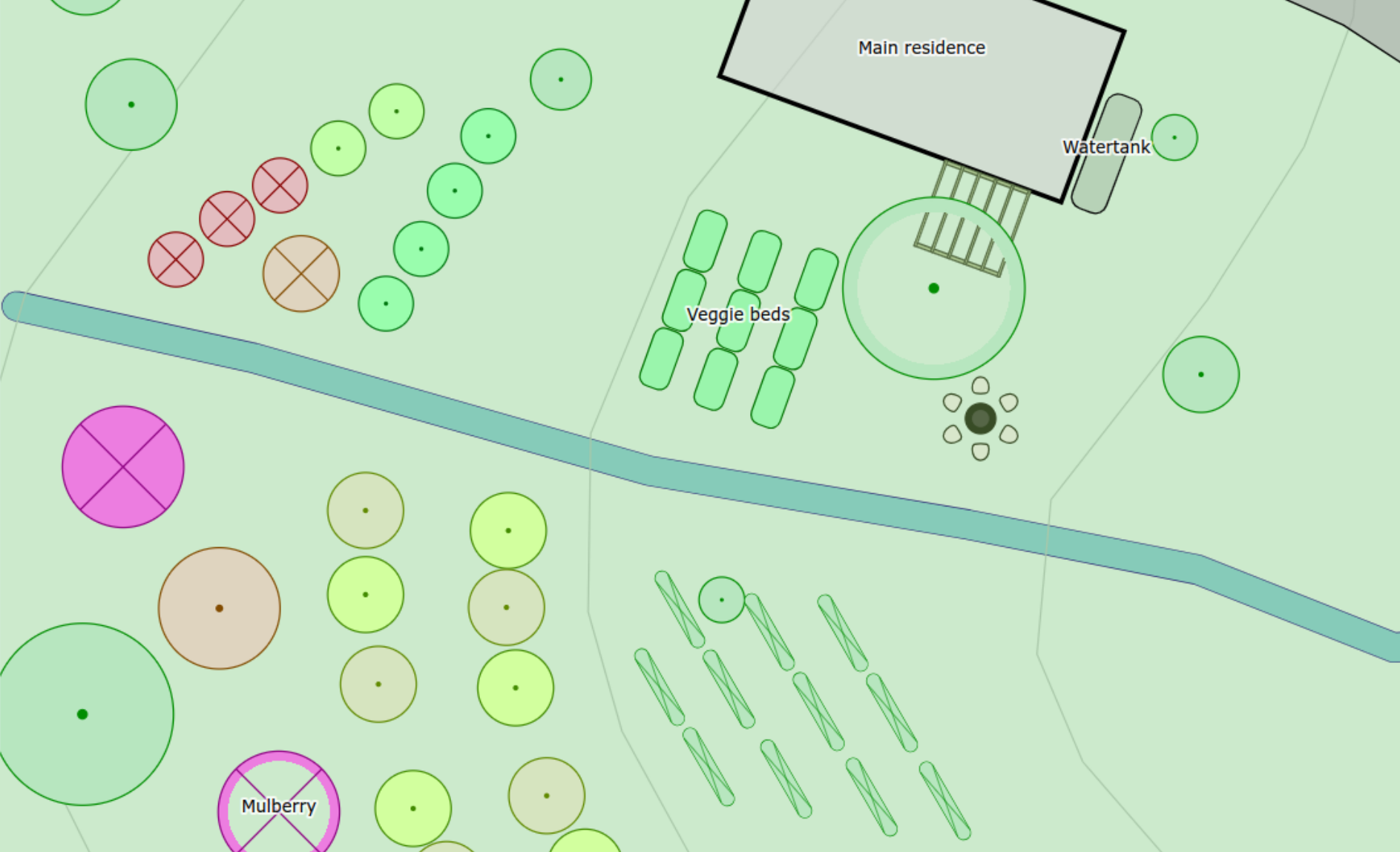
Permiehub Labels Example
Visibility of Labels
Because a label is an attribute of an object, you can only see it when the object shows.
You can use this to your advantage as you progress through the design steps.
EXAMPLE
For example, in your concept design, you can add a label ‘Veggie Garden’ to a garden area. When you move to the detail design and break down your veggie area into garden beds, you can assign them different labels individually - for example: “Ginger” or “Garden Bed #1”.
Description
You can add a description to objects in your design to include important notes or information.
Using Description to Generate Design’s Legend
Description field can also play crucial role in creating a Legend for your drawing. Learn more in Adding a Legend to Your Design.
Plant’s Attributes
Fruiting / Flowering / Bearing Leaves
You can note when trees fruit, flower, or bear leaves. You can also colour trees to reflect their fruit or blossoms, or colour-code your trees.
If you set up the times your trees bear blossoms, fruit, or leaves, you can visualise the information for each month using the Highlight Planting feature.
Espalier Width
When creating hedges and espaliers in your detailed design, you can change their thickness by changing the relevant attribute.
Transparent Centre
When adding planting under a large tree, it might be useful to change its parameter to have a transparent centre. The visual representation will change to allow viewing objects underneath.
Implementation Status
To keep track of progress, objects in your detailed design can be marked either as Not Yet Implemented or Implemented.
To switch between the current implemented elements of your detailed design and the planned view, toggle the icon of a highlighter marker in the menu of overlays.
WARNING
Toggling between viewing of implemented elements and all elements of detailed design is only possible when in the detailed design overlay.